# Basic Building Blocks

Welcome to the detailed guide on utilizing Airbook to its full potential. This guide is designed to walk you through each phase of your data management journey, providing step-by-step instructions, best practices, and tips to enhance your experience

### Connect

<figure><img src="https://3523891153-files.gitbook.io/~/files/v0/b/gitbook-x-prod.appspot.com/o/spaces%2FVbTtJ4e9ZvlHdjkYxtCx%2Fuploads%2FBZxns5kHisy3avAid4f0%2Fconnect-hero.png?alt=media&amp;token=29d90155-2092-48eb-a3b3-08893d546767" alt=""><figcaption></figcaption></figure>

* **Initial Setup**: Begin by identifying the key data sources that your organization uses. These could include CRMs like Salesforce, marketing platforms like Google Ads, or any SQL databases.
* **Secure Connections**: Follow our secure protocols to connect your data sources to Airbook. This involves authenticating each source and ensuring that data transfer is encrypted and compliant with your data governance policies.
* **Data Transformation Tools**: Use Airbook’s tools to cleanse and prepare your data. Learn how to handle duplicates, format dates, and normalize text fields to ensure consistency across your datasets.

### Explore

<figure><img src="https://3523891153-files.gitbook.io/~/files/v0/b/gitbook-x-prod.appspot.com/o/spaces%2FVbTtJ4e9ZvlHdjkYxtCx%2Fuploads%2FLSQScZaN0vQ9qqmtrsMh%2Fexplore-hero.png?alt=media&amp;token=86a8a717-f638-4824-9943-768e8c0f15ba" alt=""><figcaption></figcaption></figure>

* **Choosing Your Tools**: Select between using SQL for granular control or our intuitive no-code query builder for simplicity. Each tool is designed to accommodate different skill levels and use cases.
* **Collaborative Analysis**: Engage with your team by sharing queries and exploring data together. Understand how to utilize version control and comment features to enhance collaboration.
* **Advanced Analytics**: Dive deeper into analytics with tutorials on creating complex queries that combine multiple data sources, use conditional logic, and aggregate data for comprehensive insights.

### Present

<figure><img src="https://3523891153-files.gitbook.io/~/files/v0/b/gitbook-x-prod.appspot.com/o/spaces%2FVbTtJ4e9ZvlHdjkYxtCx%2Fuploads%2FUuJS9lhX60Nkr0kzCqlk%2Fpresent-hero.png?alt=media&amp;token=275d76e7-cc31-40f4-bfab-87219fd5fb5c" alt=""><figcaption></figcaption></figure>

* **Dashboard Design**: Learn to design dashboards that are not only informative but also visually appealing. This section covers the selection of widgets, layout design, and customization options to reflect your brand.
* **Interactive Reports**: Enhance your dashboards with interactive elements such as drill-downs and tooltips to provide users with more context and detail.
* **Distribution and Sharing**: Set up automated processes to ensure that your dashboards are always up-to-date and shared with relevant stakeholders through email, web links, or embedded in other applications.

### Activate

<figure><img src="https://3523891153-files.gitbook.io/~/files/v0/b/gitbook-x-prod.appspot.com/o/spaces%2FVbTtJ4e9ZvlHdjkYxtCx%2Fuploads%2Fy5thpQD5qGjmM8dRU3ph%2Factivate-hero.png?alt=media&amp;token=e0c106a2-aa21-44b5-b136-e7c985803657" alt=""><figcaption></figcaption></figure>

* **Automated Workflows**: Configure Airbook to initiate workflows based on specific data triggers. For example, sending a targeted email campaign when a sales lead reaches a certain score or updating a project management tool when inventory levels change.
* **Integrations with Business Tools**: Extend Airbook’s capabilities by integrating with external applications. Understand how to use APIs to connect Airbook with tools like Zapier, which can link your data insights to hundreds of other apps.
* **Monitoring and Optimization**: Continuously monitor the performance of your automated actions and optimize them based on the outcomes. Learn how to use feedback loops to refine triggers and actions to ensure they remain relevant and effective.

This guide provides a holistic view of how to leverage Airbook effectively within your organization. By following these detailed steps and incorporating the best practices outlined, you'll be able to maximize the value of your data and drive meaningful business outcomes.

***

### Workspaces

Your workspace is the central hub where all your projects, datasets, and reports live. It’s designed to keep everything organized and easily accessible, so you can focus on what matters.

**How to use it:**

* **Centralized Organization:** Keep all your data projects in one place.
* **Controlled Access:** Manage who can view and edit.
* **Collaborative Environment:** Work together with your team in real-time.

### Projects

Projects help you organize your work into separate areas for different tasks or initiatives. Each project can have multiple Airbooks, datasets, and reports, making it easy to stay organized.

**How to use it:**

* **Organize by Focus:** Separate projects by team, department, or goal.
* **Track Progress:** Keep an eye on deadlines and milestones.
* **Collaborate With Context:** Share insights and work together within specific projects.

### Airbooks

Airbooks are interactive documents where you can combine code, data, text and charts. They’re flexible and powerful, allowing you to create dynamic reports and analyses.

**How to use it:**

* **Perform Flexible Analysis:** Use SQL to any data source with flexible joins.
* **Maintain Living Documents:** Update automatically as data changes.
* **Combine Code and Context:** Document your findings, share context around your numbers and collaborate with your team- in one place.

### Slash Command Menus

Slash commands are your shortcuts to efficiency. Just type a slash (/) to access a range of commands that let you manipulate data, create visualizations, and more.

**How to use it:**

* **Access Quickly:** Run queries or insert charts in a snap.
* **Boost Efficiency:** Access your most-used functions without breaking your flow.
* **Increase Productivity:** Get things done faster with intuitive commands.


# Connect

Get an overview of the connection process and how it works.

## **Connecting Your Data Sources**

{% hint style="info" %}
To connect to data sources, you must have at least **Analyst role** privileges.
{% endhint %}

Here's a quick walkthrough of the connection process from Co-founder and CEO Hoshang. See below for more detailed instructions.

{% embed url="<https://youtu.be/fvzpo2rpp4M?feature=shared>" %}

In the left sidebar, under your current workspace, you’ll find a series of pages, including one titled **Connections**. On this page, you’ll see a list of **connect cards**, each representing an available data source that you can sync with Airbook.

There are two types of data sources supported by Airbook:

* **Business Applications**: These are synced to Airbook's Warehouse.
* **Databases and Data Warehouses** (such as Snowflake or Postgres): These are indexed for easier querying and autocompletion. They can be joined with any other sources, but your data remains in its original location, and the queries are executed on your infrastructure.

### Connecting to a Business Application

To connect a Business Application, click on the relevant card. While the connection process may differ for each source, all require you to provide a **unique name**. The name must not contain capital letters, special characters, or spaces, though you can use underscores. This name will be used to reference the source in your SQL queries.

You can connect multiple instances of the same Business Application. For example, you may want to connect to two or more Google Sheets documents. This is possible as long as each instance has a unique name.

### Connecting to a Database/Data Warehouse

Databases and Data Warehouses have their own setup process, which requires you to have access to the relevant credentials. If you do not have access to these credentials, you can invite a team member who does. To begin the connection, click on the source of your choice and follow the on-screen instructions. Many providers will require you to grant access to our IP, which is permanently **`34.122.205.142`**.

### After the Connection is Established

After completing the connection process, there will be a waiting period while your data is being synced and/or indexed. For sources with a large amount of historical data, this process may take longer. Airbook will notify you via email and an in-app notification when the sync is complete and you can start querying.

Once you’re all connected, you can move on to exploring!


# BigQuery

## How to Connect to BigQuery on Airbook

### Overview

Connecting your Airbook to BigQuery allows you to access and analyze your data stored in BigQuery directly from Airbook. This guide will walk you through the setup process.

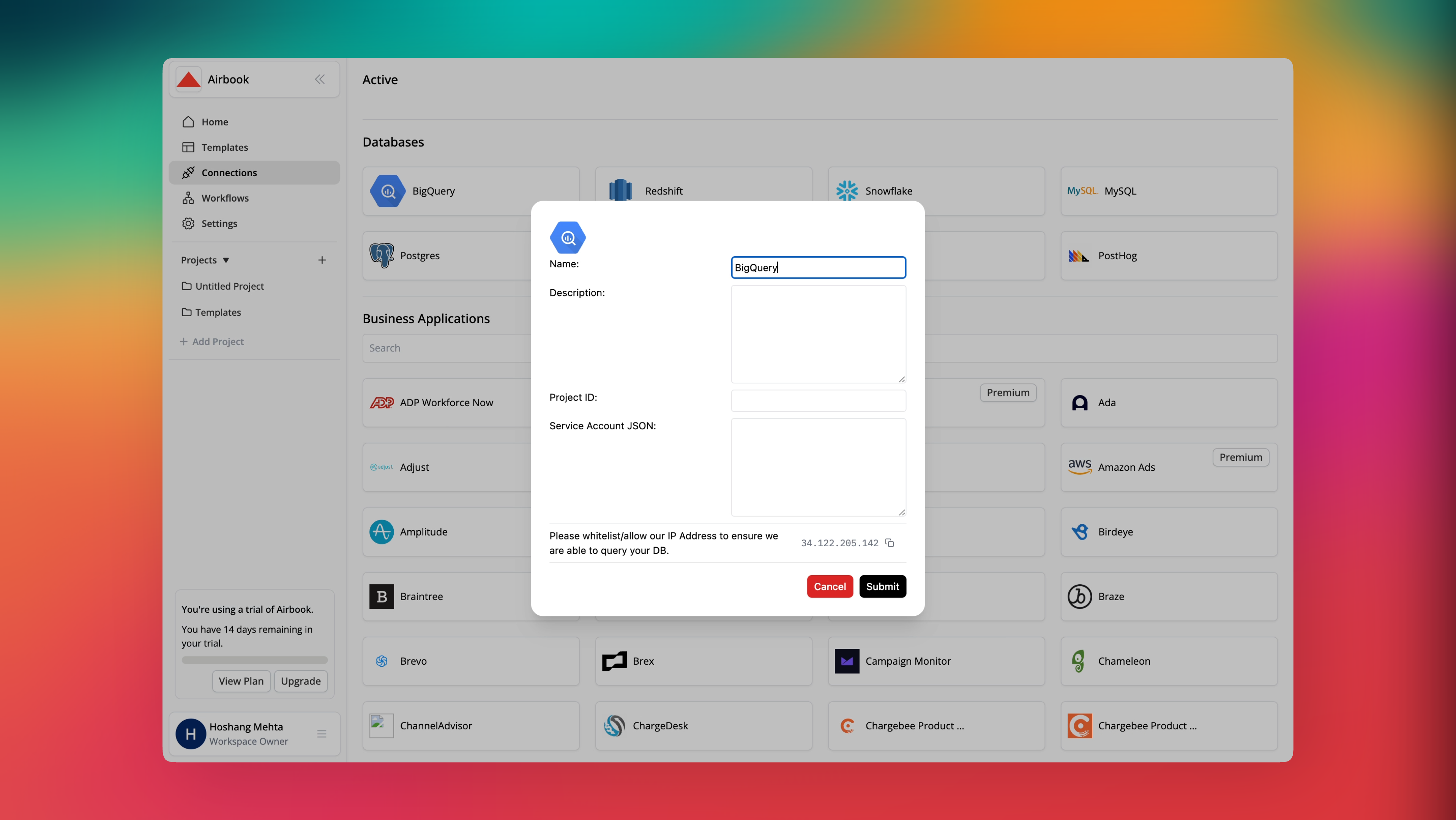
<figure><img src="https://3523891153-files.gitbook.io/~/files/v0/b/gitbook-x-prod.appspot.com/o/spaces%2FVbTtJ4e9ZvlHdjkYxtCx%2Fuploads%2FXUOtdRt4YeKUH4NDHXKC%2Fconnecting_bigquery.png?alt=media&amp;token=051d352f-6d57-486c-a647-829b3e333db3" alt=""><figcaption><p>Connect to Bigquery</p></figcaption></figure>

### Steps to Connect to BigQuery

1. **Access Connections**: Start by navigating to the 'Connections' tab on the left side of your Airbook interface.
2. **Add BigQuery Connection**: In the 'Databases' section, find and click on the BigQuery icon.
3. **Configure Connection**:
   * **Name**: Enter a name for the connection to help identify it later.
   * **Description**: Optionally provide a description of what this connection will be used for.
   * **Project ID**: Enter the Google Cloud Project ID where your BigQuery dataset is hosted.
   * **Service Account JSON**: Provide the JSON key file associated with your service account. This account should have the necessary permissions to access the BigQuery data.
4. **Submit**: After filling in all the necessary fields, click 'Submit' to establish the connection.

### Finalizing the Connection

Once submitted, Airbook will validate the connection details. If everything is correct, your BigQuery database will be connected, and you can start querying your data directly from Airbook.

### Troubleshooting

Ensure that our IP address `34.122.205.142` is whitelisted/allowed in your Google Cloud settings to avoid permissions-related issues.


# Snowflake

### How to Connect Airbook to Snowflake&#x20;

Connecting Airbook to Snowflake allows you to leverage your Snowflake data for robust analysis and insights. Follow these steps to set up your Snowflake connector in Airbook and start querying your data.

{% embed url="<https://www.loom.com/share/e31a1ef026734facbccb03cfb49e5721?sid=1e78a747-ffd2-4d1b-86f5-1db96e667e14>" %}

<figure><img src="https://3523891153-files.gitbook.io/~/files/v0/b/gitbook-x-prod.appspot.com/o/spaces%2FVbTtJ4e9ZvlHdjkYxtCx%2Fuploads%2FwuD3FZsyfqeJYgVvT3Nf%2FSnowflake_connector.png?alt=media&amp;token=90493786-dd9f-468d-af9c-bdc617cdad77" alt=""><figcaption></figcaption></figure>

### Step-by-Step Guide

1. **Prepare Your Snowflake Account:**
   * Open your Snowflake UI in a new tab.
2. **Retrieve Snowflake Account URL:**
   * In the Snowflake UI, locate your account URL. This URL is typically displayed in the format `https://<account_identifier>.snowflakecomputing.com`.
3. **Trim the URL:**
   * Copy your Snowflake account URL and remove the `https://` prefix and everything after `.snowflakecomputing.com`. You should be left with `<account_identifier>.snowflakecomputing.com`.
4. **Navigate to Airbook Connections:**
   * Switch over to your Airbook workspace and click on the "Connections" tab located on the sidebar.
5. **Select Snowflake Connector:**
   * From the list of available data sources, select "Snowflake."
6. **Enter Connection Details:**
   * In the connection setup screen, enter the following information:
     * **Account URL:** Paste the trimmed Snowflake account URL (`<account_identifier>.snowflakecomputing.com`).
     * **Database Name:** Enter the name of the database you want to use. For example, you can use `SNOWFLAKE_SAMPLE_DATA`.
     * **Username:** Enter the username you use to log into your Snowflake account.
     * **Password:** Enter the corresponding password for your Snowflake account.
7. **Whitelist Our IP Address:**
   * To ensure seamless connectivity and the ability to query your database without interruptions, please whitelist our IP address: **34.122.205.142**. This step is crucial for establishing a secure and stable connection between your database and Airbook, allowing us to retrieve and analyze your data effectively.
8. **Test Connection:**
   * Click the "Test Connection" button to ensure Airbook can connect to your Snowflake database. If the test is successful, you'll see a success message. Otherwise, you'll be prompted to make the required corrections to your database credentials.
9. **Save and Connect:**
   * Once the connection test is successful, save your configuration. You’ll be prompted to give the connection a schema name. Enter a descriptive name and save it.
10. **Wait for Ingestion:**
    * Your Snowflake data will start ingesting into Airbook. This process may take a while depending on the volume of data. If your Snowflake data doesn’t show up immediately, give it a few minutes. You will receive an email notification once the data ingestion is complete.

### Querying Data from Snowflake

Now that your Snowflake account is connected, querying data is simple:

1. **Go to the Query Section:**
   * Navigate to the query section in your Airbook workspace.
2. **Run a Query:**
   * Enter your SQL query to fetch data from Snowflake and hit the "Run Query" button.
3. **View Results:**
   * Your query results will be displayed, showing how easy it is to access and analyze data from Snowflake within Airbook.


# MySQL

Follow this step-by-step guide to connect your MySQL databases to Airbook.

### Connecting MySQL Databases

<figure><img src="https://3523891153-files.gitbook.io/~/files/v0/b/gitbook-x-prod.appspot.com/o/spaces%2FVbTtJ4e9ZvlHdjkYxtCx%2Fuploads%2F2XMlI6IoXJvopz1ONCFv%2Fmysql_connector.png?alt=media&amp;token=106afbe7-4dc6-48de-95bb-22c7c3a68053" alt=""><figcaption></figcaption></figure>

1. **Navigate to Connections:**
   * In your Airbook workspace, click on the "Connections" tab located on the sidebar.
2. **Select MySQL:**
   * From the list of available data sources, select "MySQL."
3. **Enter Connection Details:**
   * You’ll need the following information to connect:
     * **Host:** The hostname or IP address of your MySQL server.
     * **Port:** The port number for MySQL.
     * **Database Name:** The name of the database you want to connect to.
     * **Username:** Your MySQL username.
     * **Password:** Your MySQL password.
4. **Whitelist Our IP Address:**
   * To ensure seamless connectivity and the ability to query your database without interruptions, please whitelist our IP address: **34.122.205.142**. This step is crucial for establishing a secure and stable connection between your database and Airbook, allowing us to retrieve and analyze your data effectively. Whitelisting our IP address will help avoid any network or security blocks that could prevent successful data queries.
5. **Test Connection:**
   * Click the "Submit" button to ensure Airbook can connect to your MySQL database. If the test is successful, you'll see a success message. Otherwise, you'll be prompted to make the required corrections to your database credentials.
6. **Save and Connect:**
   * Once the connection test is successful, save your configuration. You’ll be prompted to give the connection a schema name. Enter a descriptive name and save it.


# PostgreSQL (Postgres)

Follow this step-by-step guide to connect your PostgreSQL databases to Airbook.

### Connecting PostgreSQL Databases

<figure><img src="https://3523891153-files.gitbook.io/~/files/v0/b/gitbook-x-prod.appspot.com/o/spaces%2FVbTtJ4e9ZvlHdjkYxtCx%2Fuploads%2FVCdLbsIjddepjmZkclWq%2Fpostgres_connector.png?alt=media&amp;token=5e183250-3ad7-4d8f-838b-3a9ba42dab38" alt=""><figcaption></figcaption></figure>

1. **Navigate to Connections:**
   * In your Airbook workspace, click on the "Connections" tab located on the sidebar.
2. **Select PostgreSQL:**
   * From the list of available data sources, select "PostgreSQL."
3. **Enter Connection Details:**
   * You’ll need the following information to connect:
     * **Host:** The hostname or IP address of your PostgreSQL server.
     * **Port:** The port number for PostgreSQL.
     * **Database Name:** The name of the database you want to connect to.
     * **Username:** Your PostgreSQL username.
     * **Password:** Your PostgreSQL password.
4. **Whitelist Our IP Address:**
   * To ensure seamless connectivity and the ability to query your database without interruptions, please whitelist our IP address: **34.122.205.142**. This step is crucial for establishing a secure and stable connection between your database and Airbook, allowing us to retrieve and analyze your data effectively. Whitelisting our IP address will help avoid any network or security blocks that could prevent successful data queries.
5. **Test Connection:**
   * Click the "Submit" button to ensure Airbook can connect to your PostgreSQL database. If the test is successful, you'll see a success message. Otherwise, you'll be prompted to make the required corrections to your database credentials.
6. **Save and Connect:**
   * Once the connection test is successful, save your configuration. You’ll be prompted to give the connection a schema name. Enter a descriptive name and save it.
7. **Start Exploring:**
   * Your PostgreSQL database is now connected to Airbook. You can start exploring and analyzing your data.


# Amazon RedShift

### How to Connect Airbook to Redshift

Connecting Airbook to Redshift allows you to harness the power of your Redshift data for robust analysis and insights. Follow these steps to set up your Redshift connector in Airbook and start querying your data.

{% embed url="<https://www.loom.com/share/e89c869ddc244d60bcba46218e259133?sid=46da235d-0f3f-4f40-87bd-9a42e155f271>" %}

<figure><img src="https://3523891153-files.gitbook.io/~/files/v0/b/gitbook-x-prod.appspot.com/o/spaces%2FVbTtJ4e9ZvlHdjkYxtCx%2Fuploads%2FlKrcQrzWIPemu8xodIJy%2Fredhsift_connector.png?alt=media&amp;token=8dddcff5-1b40-4089-89a1-ca5a16f4fb53" alt=""><figcaption></figcaption></figure>

### Step-by-Step Guide

1. **Prepare Your Redshift Database:**
   * Ensure that your Redshift database is accessible from outside your VPC network. This is crucial for allowing Airbook to query your data.
2. **Retrieve Endpoint Information:**
   * Open your Redshift application and copy the endpoint URL.
3. **Navigate to Airbook Connections:**
   * Switch over to your Airbook workspace and click on the "Connections" tab located on the sidebar.
4. **Select Redshift Connector:**
   * From the list of available data sources, select "Redshift."
5. **Enter Connection Details:**
   * In the connection setup screen, paste your Redshift endpoint URL.
   * Remove everything after the colon (:) in the URL as this part represents the port number. The default port number for Redshift is **5439**, so you will likely use this value.
   * Enter the name of your Redshift database. For this example, we'll use `dev`.
6. **Provide Authentication Credentials:**
   * Enter your AWS username and password associated with the Redshift database.
7. **Whitelist Our IP Address:**
   * To ensure seamless connectivity and the ability to query your database without interruptions, please whitelist our IP address: **34.122.205.142**. This step is crucial for establishing a secure and stable connection between your database and Airbook, allowing us to retrieve and analyze your data effectively.
8. **Test Connection:**
   * Click the "Test Connection" button to ensure Airbook can connect to your Redshift database. If the test is successful, you'll see a success message. Otherwise, you'll be prompted to make the required corrections to your database credentials.
9. **Save and Connect:**
   * Once the connection test is successful, save your configuration. You’ll be prompted to give the connection a schema name. Enter a descriptive name and save it.
10. **Wait for Ingestion:**
    * Your Redshift data will start ingesting into Airbook. This process may take a while depending on the volume of data. If your Redshift data doesn’t show up immediately, give it a few minutes. You will receive an email notification once the data ingestion is complete.


# MotherDuck

### How to Connect Airbook to MotherDuck <a href="#how-to-connect-airbook-to-motherduck" id="how-to-connect-airbook-to-motherduck"></a>

Connecting Airbook to MotherDuck is a straightforward process. MotherDuck is a new serverless analytics platform, and here's a guide to connect your MotherDuck data to Airbook.

Follow these steps to set up your connection

<figure><img src="https://3523891153-files.gitbook.io/~/files/v0/b/gitbook-x-prod.appspot.com/o/spaces%2FVbTtJ4e9ZvlHdjkYxtCx%2Fuploads%2FEpMvfB1zENiYc1dyz9MM%2Fmother_duck_connector.png?alt=media&amp;token=ecfa06b5-806b-4016-8c21-5b1328db3377" alt=""><figcaption></figcaption></figure>

### Step-by-Step Guide <a href="#step-by-step-guide" id="step-by-step-guide"></a>

1. **Log in to MotherDuck:**
   * Start by logging into your MotherDuck account.
2. **Retrieve Service Token:**
   * Once logged in, click on your username in the upper right corner and go to "Settings."
   * You will see a service token displayed. Copy this token as you will need it to authenticate the connection with Airbook.
3. **Navigate to Airbook Connections:**
   * Switch over to your Airbook workspace and click on the "Connections" tab located on the sidebar.
4. **Select MotherDuck Connector:**
   * From the list of available data sources, select "MotherDuck."
5. **Paste the Service Token:**
   * You will be prompted to enter your service token. Paste the token you copied from MotherDuck into the provided field.
6. **Confirm the Connection:**
   * After pasting the service token, click on the "Confirm" button to establish the connection.
7. **Verify Connection:**
   * You should now see that your MotherDuck account is connected to Airbook.

#### Querying Data from MotherDuck <a href="#querying-data-from-motherduck" id="querying-data-from-motherduck"></a>

Now that your MotherDuck account is connected, querying data is simple:

1. **Go to the Query Section:**
   * Navigate to the query section in your Airbook workspace.
2. **Run a Query:**
   * Enter your SQL query to fetch data from MotherDuck and hit the "Run Query" button.
3. **View Results:**
   * Your query results will be displayed, showing how easy it is to access and analyze data from MotherDuck within Airbook.


# Supabase

Learn how to connect your Supabase DB to Airbook.

Supabase is a hosted PostgreSQL service. Follow these steps to connect your Supabase database to Airbook:

{% hint style="info" %}
See also: [PostgreSQL (Postgres)](/connect/postgresql-postgres)
{% endhint %}

<figure><img src="https://3523891153-files.gitbook.io/~/files/v0/b/gitbook-x-prod.appspot.com/o/spaces%2FVbTtJ4e9ZvlHdjkYxtCx%2Fuploads%2FVCdLbsIjddepjmZkclWq%2Fpostgres_connector.png?alt=media&amp;token=5e183250-3ad7-4d8f-838b-3a9ba42dab38" alt=""><figcaption></figcaption></figure>

#### Steps to Connect:

1. **Log into Supabase** and open the project you want to connect.
2. At the top, click the **Connect** button.
3. Choose either:
   * **Direct Connection** (for direct access)
   * **Transaction Pooler** (for pooled connections)
4. **Ignore the URI**—instead, click **View Parameters** to reveal the necessary connection details.

#### Configuring Airbook:

1. Open **Airbook's Connections** page.
2. Select **Postgres** as the database type.
3. Copy the parameters from Supabase and paste them into Airbook.
4. **Enter your database password manually** (Supabase does not provide it in the connection details).
5. Click **Connect**.

#### What Happens Next:

* Your data will begin syncing automatically.
* You don’t need to wait—Airbook will notify you via email once the data is available for querying.


# Business Connectors

Airbook connects natively with the following list of connectors:

{% embed url="<https://auth.airbookhq.com/storage/v1/object/public/website-assets/Features-Connect/DataIn.mp4>" %}

<table data-header-hidden><thead><tr><th width="179">ADP Workforce Now</th><th>ADP Workforce Now is a all-in-one platform for payroll and HR software, providing expert support and analytics for data-driven insights</th></tr></thead><tbody><tr><td>AWS CloudTrail</td><td>AWS CloudTrail is a service that enables governance, compliance, operational auditing, and risk auditing of your AWS account. With AWS CloudTrail, you can log, continuously monitor, and retain account activity related to actions across your AWS infrastructure.</td></tr><tr><td>AWS Inventory</td><td>AWS Inventory is a comprehensive service that provides you with an Amazon Web Services (AWS) resource inventory, configuration history, and configuration change notifications. With AWS Inventory, you can fetch and view the details of the services of your AWS account.</td></tr><tr><td>AWS Lambda</td><td>AWS Lambda is a serverless computing platform that runs code in response to events and automatically manages the compute resources required by that code.</td></tr><tr><td>AWS MSK</td><td>AWS Managed Streaming for Kafka is a managed distributed streaming platform.</td></tr><tr><td>ActiveCampaign</td><td>ActiveCampaign is a customer experience automation platform.</td></tr><tr><td>AdRoll</td><td>AdRoll is prospecting and retargeting platform</td></tr><tr><td>Adjust</td><td>Adjust is a mobile measurement and fraud prevention platform.</td></tr><tr><td>Adobe Analytics</td><td>Adobe Analytics provides marketing analytics and reporting tools.</td></tr><tr><td>Adobe Analytics Data Feed</td><td>Adobe Analytics Data Feeds provide raw events data</td></tr><tr><td>Airtable</td><td>Airtable is an online collaboration platform for creating and sharing relational databases.</td></tr><tr><td>Amazon Ads</td><td>The key selling platform for online retail customers</td></tr><tr><td>Amazon CloudFront</td><td></td></tr><tr><td>Amazon DocumentDB</td><td>Amazon DocumentDB is a fully-managed NoSQL database service that is built for JSON data management and integrated with AWS.</td></tr><tr><td>Amazon Kinesis Firehose</td><td>Amazon Kinesis Firehose is a tool for capturing, manipulating, and loading data as it streams from a source to an AWS destination. Upon arrival at an S3 bucket, data from a Firehose delivery stream will appear without newline delimiters in extensionless files. Airbook supports syncing from an Amazon S3 bucket to your destination json files that originate from a Kinesis Firehose delivery stream.</td></tr><tr><td>Amazon S3</td><td>Amazon Simple Storage Service (Amazon S3), provides scalable cloud storage services. Airbook supports syncing files from your S3 bucket to your destination.</td></tr><tr><td>Amplitude</td><td>Amplitude is the comprehensive product analytics software for web and mobile</td></tr><tr><td>Anaplan</td><td>Anaplan is a cloud-based platform for business planning and modeling.</td></tr><tr><td>Apache Kafka</td><td>Apache Kafka is an open-source distributed streaming platform for building real-time data pipelines and stream processing applications.</td></tr><tr><td>Apple App Store</td><td>Apple App Store (formerly known as iTunes Connect) is a suite of web-based tools created for developers to submit and manage their apps for sale in the App Store or the Mac App Store.</td></tr><tr><td>Apple Search Ads</td><td>Apple Search Ads helps people discover your app on the App Store for iPhone and iPad.</td></tr><tr><td>AppsFlyer</td><td>AppsFlyer is a mobile app tracking and attribution analytics platform.</td></tr><tr><td>Asana</td><td>Asana is a project management tool that helps teams track their tasks and projects.</td></tr><tr><td>Assembled</td><td>Assembled is a workforce management platform for customer service.</td></tr><tr><td>Aurora MySQL</td><td>Amazon Aurora MySQL is a relational database typically used to keep in-house custom data.</td></tr><tr><td>Aurora Postgres</td><td>Aurora Postgres is a hosted version of the popular Postgres database on the Amazon Aurora platform</td></tr><tr><td>Azure Blob Storage</td><td>Airbook supports syncing files from Azure Blob Storage to your destination.</td></tr><tr><td>Azure Cosmos DB - SQL API</td><td>Azure Cosmos DB is a fully managed, serverless NoSQL database for high-performance applications.</td></tr><tr><td>Azure Event Hubs</td><td>Azure Event Hubs is a managed distributed streaming platform.</td></tr><tr><td>Azure Functions</td><td>Azure Functions is a serverless computing platform that runs code in response to events and automatically manages the compute resources required by that code.</td></tr><tr><td>Azure MariaDB</td><td>Azure MariaDB is a hosted version of the popular Maria database on the Azure platform.</td></tr><tr><td>Azure MySQL</td><td>Microsoft Azure MySQL is a high-performance MySQL-compatible database system used to keep in-house custom data.</td></tr><tr><td>Azure PostgreSQL Database</td><td>Azure SQL Database is a managed relational cloud database service</td></tr><tr><td>Azure SQL Database</td><td>Azure SQL Database is a managed relational cloud database service.</td></tr><tr><td>Azure SQL Managed Instance</td><td>Azure SQL Managed Instance is a managed relational cloud database service.</td></tr><tr><td>Azure Service Bus</td><td>Azure Service Bus is a cloud messaging service.</td></tr><tr><td>Big Commerce</td><td>Complete e-commerce solution that allows you to set up an online store on any social media platform</td></tr><tr><td>Box</td><td>Box is a cloud-based file storage service. Airbook supports syncing files from your Box account to your destination. You can sync multiple files as unique tables to your destination.</td></tr><tr><td>Braintree</td><td>Braintree helps businesses of all sizes, from small to large enterprise, accept, process, and split payments to help maximize business opportunities and revenue growth. Companies around the world benefit from the technology and support of Braintree coupled with the scale, backing, and confidence of partnering with a PayPal service.</td></tr><tr><td>Braintree Sandbox</td><td>Braintree helps businesses of all sizes, from small to large enterprise, accept, process, and split payments to help maximize business opportunities and revenue growth. Companies around the world benefit from the technology and support of Braintree coupled with the scale, backing, and confidence of partnering with a PayPal service.</td></tr><tr><td>Branch</td><td>Branch is a mobile measurement and deep linking platform that unifies user measurement across different devices, platforms, and channels.</td></tr><tr><td>Braze</td><td>Braze is a platform for cross-channel marketing automation.</td></tr><tr><td>Buildkite</td><td>Connect your Buildkite data to your destination using Airbook. Learn about configuration requirements, setup, and ERDs with our technical documentation.</td></tr><tr><td>Chargebee Product Catalog 1.0</td><td>Chargebee is a subscription billing and revenue management platform.</td></tr><tr><td>Chargebee Product Catalog 2.0</td><td>Chargebee Product Catalog 2.0 is a billing, subscription, and revenue management platform.</td></tr><tr><td>Confluent Cloud</td><td>Confluent Cloud is a managed distributed streaming platform.</td></tr><tr><td>Coupa</td><td>Coupa Software is a global technology platform for Business Spend Management</td></tr><tr><td>Criteo</td><td>Criteo helps internet retailers serve personalized advertisements through retargeting</td></tr><tr><td>Crossbeam</td><td>Crossbeam is a partner ecosystem platform.</td></tr><tr><td>Delighted</td><td>Delighted collects surveys from your customers</td></tr><tr><td>Drift</td><td>Drift is a sales acceleration platform that provides sales and marking software.</td></tr><tr><td>Dropbox</td><td>Dropbox is a cloud storage provider. Airbook supports syncing files from your Dropbox account to your destination. You can sync multiple files as unique tables to your destination.</td></tr><tr><td>DynamoDB</td><td>Amazon DynamoDB is a fully-managed, proprietary NoSQL database service that is offered as part of Amazon Web Services (AWS).</td></tr><tr><td>Elastic Cloud</td><td>Elastic Cloud is a NoSql Document Database</td></tr><tr><td>Eloqua</td><td>Oracle Eloqua equips marketers with best-in-class lead and campaign management tools that help marketers engage the right audience at the right time in the buyer's journey while providing real-time reporting and insights.</td></tr><tr><td>Email</td><td>Email CSV and JSON files to your destination with the Email Connector. The Email Connector extracts one or more attachments from the email, parses the attachment data and uploads them into your warehouse. Emails are deleted once attachments are extracted from it. This is designed for schedule email reports.</td></tr><tr><td>FTP</td><td>Airbook supports syncing files from an FTP server to your destination.</td></tr><tr><td>Facebook Ad Account</td><td>Facebook Ad Account provides a history of the settings of your Facebook Ad Accounts, Campaigns, Ad Sets, Ads, and Ad Creatives.</td></tr><tr><td>Facebook Ad Insights</td><td>Facebook Ad Insights gives you information about the performance of your Facebook ads.</td></tr><tr><td>Facebook Ads</td><td>Facebook Ads provides a history of the settings of your Ad Account, Campaigns, Ad Sets, Ads, and Ad Creatives. Facebook Ads also fetches Ad Insights data.</td></tr><tr><td>Facebook Pages</td><td>Sync your Facebook pages and posts, as well as insights about them, with the Facebook Pages connector.</td></tr><tr><td>FinancialForce</td><td>FinancialForce is an ERP and service automation tool built on Salesforce.</td></tr><tr><td>Freightview</td><td>Freightview is an online transportation management system.</td></tr><tr><td>Freshdesk</td><td>Freshdesk is a SaaS customer support software and help desk ticketing system. The solution also includes features like Knowledge Base, Community Platform, Live Chat, Phone Support, etc.</td></tr><tr><td>Freshservice</td><td>Freshservice is a IT service management platform.</td></tr><tr><td>Freshservice_lite</td><td>Freshservice is a IT service management platform.</td></tr><tr><td>Front</td><td>Front simplifies how your team manages email lists and customer communications. It provides services to centralize all your communication in one place and optimize how your team handles every message with powerful automations. It also connects your inbox with all the apps you rely on.</td></tr><tr><td>Gainsight</td><td>Gainsight is a revenue optimization platform.</td></tr><tr><td>Gainsight Customer Success</td><td>Gainsight Customer Success is a customer success platform.</td></tr><tr><td>GitHub</td><td>GitHub is a platform for developers to build personal projects, support their businesses, and work together on open source technologies. Airbook helps you export data about commits, users, pull-requests, and other GitHub data.</td></tr><tr><td>GoCardless</td><td>GoCardless is a payment platform that facilitates payment processing for recurring payments.</td></tr><tr><td>Gong</td><td>Gong is a revenue intelligence platform.</td></tr><tr><td>Google Ad Manager</td><td>Google Ad Manager is a hosted ad serving platform to streamline ad management, whether you deliver ads to websites, mobile web pages, mobile apps, games, or a combination. It offers an integrated platform to manage all direct and programmatic sales, and to streamline all ad sales across your web and app inventory.</td></tr><tr><td>Google Ads</td><td>Google Ads is an online advertising platform</td></tr><tr><td>Google Analytics</td><td>Google Analytics lets you analyze data about customer engagement with your website or application.</td></tr><tr><td>Google Analytics (MCF)</td><td>Google Analytics Multi-Channel Funnels (MCF) Reports lets you get conversion path data that shows user interactions with various traffic sources over multiple sessions prior to converting, and to analyze how multiple marketing channels influence conversions.</td></tr><tr><td>Google Analytics 360</td><td>Google Analytics 360 provides the tools and support that enterprise teams need to get actionable insights from their data. You can export session and hit data from a Google Analytics 360 account to BigQuery. When you export data to BigQuery, you own that data, and you can use BigQuery ACLs to manage permissions on projects and datasets.</td></tr><tr><td>Google Analytics 4</td><td>Google Analytics 4 lets you analyze data about customer engagement with your website or application.</td></tr><tr><td>Google Analytics 4 Export</td><td>Google Analytics 4 is an analytics service to measure traffic and engagement across websites and mobile apps.</td></tr><tr><td>Google Campaign Manager 360</td><td>Google Campaign Manager 360 simplifies advertising campaign management, from media planning to reporting. With all your digital marketing efforts on one powerful platform, you can work smarter, act quicker, and get better results.</td></tr><tr><td>Google Cloud Functions</td><td>Google Cloud Functions is a serverless computing platform that runs code in response to events and automatically manages the compute resources required by that code.</td></tr><tr><td>Google Cloud MySQL</td><td>Google Cloud MySQL is a fully-managed MySQL database on Google Cloud Platform.</td></tr><tr><td>Google Cloud PostgreSQL</td><td>Google Cloud SQL Postgres is a hosted version of the popular Postgres database on the Google Cloud platform</td></tr><tr><td>Google Cloud SQL - SQL Server</td><td>Google Cloud SQL is a fully managed SQL Server databases in Google Cloud.</td></tr><tr><td>Google Cloud Storage</td><td>Google Cloud Storage is Google's cloud storage system.</td></tr><tr><td>Google Display &#x26; Video 360</td><td>Google Display &#x26; Video 360 is an integrated solution for end-to-end advertising campaigns.</td></tr><tr><td>Google Drive</td><td>Google Drive is a file storage and synchronization service. Airbook supports syncing files from your Google Drive to your destination. You can sync multiple files as unique tables to your destination.</td></tr><tr><td>Google Play</td><td>The Google Play connector will sync monthly reports about individual Android apps to help you track and understand your app's performance. The mid-month reports are updated daily. The full set of reports are described in the Google Play documentation.</td></tr><tr><td>Google Search Console</td><td>Google Search Console helps you monitor and maintain your site's presence in Google Search results.</td></tr><tr><td>Google Sheets</td><td>Google Sheets is a web-based application that allows users to create, update, and modify spreadsheets and share the data live online.</td></tr><tr><td>Greenhouse</td><td>Greenhouse is an applicant tracking system and recruiting software designed to optimize your entire recruiting process. Find better candidates, conduct more focused interviews, and make data-driven hiring decisions.</td></tr><tr><td>Heap</td><td>Heap automatically captures every web, mobile, and cloud interaction: clicks, submits, transactions, emails, and more. Retroactively analyze your data without writing code.</td></tr><tr><td>Height</td><td>Height is a collaborative work service that helps to maintain a project workflow.</td></tr><tr><td>Help Scout</td><td>Help Scout is a help desk software that provides an email-based customer support.</td></tr><tr><td>Heroku Kafka</td><td>Heroku Kafka is a managed distributed streaming platform.</td></tr><tr><td>Heroku Postgres</td><td>Heroku Postgres is a hosted version of the popular Postgres database on the Heroku platform</td></tr><tr><td>High Volume Agent DB2 for iSeries</td><td>Db2 for iSeries is an object-relational database management system created by the IBM Corporation. Airbook's integration platform replicates data from your Db2 for iSeries source database and loads it into your destination.</td></tr><tr><td>High-Volume Agent Oracle</td><td>Oracle Database is a database system widely used to keep in-house custom data</td></tr><tr><td>High-Volume Agent SAP ECC on Oracle</td><td>SAP ECC on Oracle</td></tr><tr><td>High-Volume Agent SAP ECC on Oracle with NetWeaver</td><td>SAP ECC on Oracle with NetWeaver</td></tr><tr><td>High-Volume Agent SQL Server</td><td>SQL Server is Microsoft's SQL database. Airbook's integration service replicates data from your SQL Server source database and loads it into your destination at regular intervals.</td></tr><tr><td>Hubspot</td><td>HubSpot is an inbound marketing and sales software that helps companies attract visitors, convert leads, and close customers.</td></tr><tr><td>Instagram Business</td><td>Instagram Business provides metadata and insights for IG User (Instagram Business Account) and IG Media (Instagram Photo, Video, Story, or Album) objects.</td></tr><tr><td>Intercom</td><td>Intercom brings messaging products for sales, marketing &#x26; customer service to one platform, helping businesses avoid the stiff, spammy status quo and have real conversations that build real connections. Designed to feel like the messaging apps you use every day, Intercom lets you talk to consumers almost anywhere: inside your app, on your website, across social media and via email.</td></tr><tr><td>Ironclad</td><td>Ironclad automates contracting processes for legal, sales, and operational sides of businesses.</td></tr><tr><td>Iterable</td><td>Iterable is a growth marketing and customer engagement platform. It enables brands to create, execute and optimize campaigns across email, push, SMS, in-app and more with unparalleled data flexibility.</td></tr><tr><td>Jira</td><td>Jira is a bug tracking, issue tracking and project management software.</td></tr><tr><td>Klaviyo</td><td>Klaviyo is an email platform powered by data built for commerce and web businesses. Klaviyo makes it easy for ecommerce marketers to target, personalize, measure and optimize email and Facebook campaigns.</td></tr><tr><td>Kustomer</td><td>Kustomer is a software platform for customer experience, service, and support integrated with a number of sources to give support staff a complete picture of a customer when they contact the company.</td></tr><tr><td>Lattice</td><td>Lattice is a people management platform.</td></tr><tr><td>Lever</td><td>Lever is a Modern Recruiting Software that streamlines the hiring process and simplifies the Applicant Tracking System.</td></tr><tr><td>Lightspeed Retail</td><td>Lightspeed Retail is a cloud-based point of sale (POS) solution that is suitable for retailers.</td></tr><tr><td>LinkedIn Ad Analytics</td><td>LinkedIn Ad Analytics offer you information about the performance of your LinkedIn Ads.</td></tr><tr><td>LinkedIn Company Pages</td><td>LinkedIn Company Pages offer you information about the company pages statistics, reactions and social metadata by your LinkedIn organizations.</td></tr><tr><td>Magento MySQL</td><td>Magento is an ecommerce platform which provides online merchants with a flexible shopping cart system, and customization of their online store. It offers marketing, search engine optimization, and catalog-management tools. Magento's underlying technology is built on the MySQL database.</td></tr><tr><td>Magento MySQL RDS</td><td>Magento is an ecommerce platform which provides online merchants with a flexible shopping cart system, and customization of their online store. It offers marketing, search engine optimization, and catalog-management tools. Magento's underlying technology is built on the MySQL RDS database.</td></tr><tr><td>Mailchimp</td><td>Mailchimp is an email marketing platform to send emails and automated messages, create targeted campaigns, facilitate reporting and analytics, and sell online.</td></tr><tr><td>Mandrill</td><td>Mandrill is a transactional email API for Mailchimp users.</td></tr><tr><td>MariaDB</td><td>MariaDB is an open source fork of the popular MySQL relational database. Its development is led by some of the original developers of MySQL.</td></tr><tr><td>MariaDB RDS</td><td>MariaDB RDS is a fork of the popular MySQL database on Amazon RDS.</td></tr><tr><td>Marin Software</td><td>Marin Software is an online advertising platform to measure, manage, and optimize ad spending across the web and mobile devices. Marin provides a Data Passback service which exports reporting data to an SFTP server. Airbook syncs files from Marin's Data Passback SFTP server to your destination.</td></tr><tr><td>Marketo</td><td>Marketo develops marketing automation software that provides inbound marketing, social marketing, CRM, and other related services.</td></tr><tr><td>Mavenlink</td><td>Mavenlink is an online project management software. Besides project management, it has time tracking, resource planning, collaboration, finance etc. functions.</td></tr><tr><td>Medallia</td><td>Medallia is a customer experience management platform.</td></tr><tr><td>Microsoft Advertising</td><td>Microsoft Advertising (formerly known as Bing Ads) is a service that provides pay-per-click advertising for both the Bing and Yahoo search engines. To get an overview of Microsoft Advertising, see its entity hierarchy and limits documentation.</td></tr><tr><td>Microsoft Dynamics 365 CRM</td><td>Microsoft Dynamics 365 is a cloud-based ERP and CRM enterprise system built by Microsoft for maximum flexibility and extensibility.</td></tr><tr><td>Microsoft Dynamics 365 F/O</td><td>Microsoft Dynamics 365 for Finance and Operations is an enterprise-level ERP solution that can be deployed in the cloud or on-premises.</td></tr><tr><td>MotherDuck</td><td><a href="https://www.motherduck.com">MotherDuck</a> is the cloud data warehouse for data teams and developers, uniquely leveraging users' laptops for analytics</td></tr><tr><td>Mixpanel</td><td>Mixpanel is a business analytics service that tracks user interactions with web and mobile applications. The data collected is used to build custom reports and measure user engagement and retention.</td></tr><tr><td>MongoDB</td><td>MongoDB is a NoSQL database characterized by a lack of fixed columns and fixed tables. Instead, it has collections (which are similar to tables) and dynamic schemas. MongoDB is a document-oriented database that uses JSON documents.</td></tr><tr><td>MongoDB Sharded</td><td>MongoDB is a NoSQL database characterized by a lack of fixed columns and fixed tables. Instead, it has collections (which are similar to tables) and dynamic schemas. MongoDB is a document-oriented database that uses JSON documents.</td></tr><tr><td>MySQL</td><td>MySQL is an open source relational database typically used to keep in-house custom data. Fivetran's integration platform replicates data from your MySQL source database and loads it into your destination.</td></tr><tr><td>MySQL RDS</td><td>MySQL RDS is a hosted version of the popular MySQL database on the Amazon RDS platform.</td></tr><tr><td>NetSuite SuiteAnalytics</td><td>NetSuite provides SuiteAnalytics as a paid option, giving businesses the power of built-in real-time dashboards, reporting and analysis—integrated right into the ERP, CRM or ecommerce application that you use every day.</td></tr><tr><td>Okta</td><td>Okta is an identity management service.</td></tr><tr><td>OneDrive</td><td>OneDrive is a cloud-based file storage service provided by Microsoft. Airbook supports syncing files from your OneDrive account to your destination. You can sync multiple files as unique tables to your destination.</td></tr><tr><td>Open Data DC</td><td>Open Data DC is an open data portal that provides government data for Washington, D.C.</td></tr><tr><td>Open Distro</td><td>Open Distro is a NoSql Document Database</td></tr><tr><td>Opensearch</td><td>OpenSearch is a NoSql Document Database</td></tr><tr><td>Optimizely</td><td>Optimizely is an experimentation platform, enabling businesses to deliver continuous experimentation and personalization across websites, mobile apps, and connected devices.</td></tr><tr><td>Oracle</td><td>Oracle is an object-relational database management system created by the Oracle Corporation. Airbook's integration platform replicates data from your Oracle source database and loads it into your destination.</td></tr><tr><td>Oracle EBS</td><td>Oracle E-Business Suite (EBS) is a set of business applications for managing and automating processes across your organization. Oracle EBS is built on the Oracle database. Instead of pulling data from its API, we pull directly from the source database. Our Oracle E-Business Suite connector shares the limitations of our Oracle database connector.</td></tr><tr><td>Oracle Fusion Cloud Applications - CX</td><td>Oracle Fusion Cloud Applications is a suite of SaaS applications for business functions.</td></tr><tr><td>Oracle Fusion Cloud Applications - FSCM(ERP &#x26; SCM)</td><td>Oracle Fusion Cloud Applications is a suite of SaaS applications for business functions.</td></tr><tr><td>Oracle Fusion Cloud Applications - HCM</td><td>Oracle Fusion Cloud Applications is a suite of SaaS applications for business functions.</td></tr><tr><td>Oracle RAC</td><td>Oracle Real Application Cluster is a database system widely used to keep in-house custom data.</td></tr><tr><td>Oracle RDS</td><td>Oracle Database RDS is a hosted version of the popular Oracle database on the Amazon RDS platform.</td></tr><tr><td>Outbrain</td><td>Outbrain is a native advertising platform using targeted advertising to recommend articles, slideshows, blog posts, photos or videos to a reader.</td></tr><tr><td>Outreach</td><td>Outreach is a sales engagement platform and automation service.</td></tr><tr><td>Pardot</td><td>Pardot is a SaaS-based marketing automation application from Salesforce, enabling marketers to create, deploy and manage online promotion campaigns.</td></tr><tr><td>Paypal</td><td>Paypal is an online payment processing platform</td></tr><tr><td>Paypal Sandbox</td><td>PayPal Sandbox is a self-contained, virtual testing environment that simulates the live PayPal production environment</td></tr><tr><td>Pendo</td><td>Pendo helps product teams understand and guide users to create product experiences that customers love.</td></tr><tr><td>Pinterest Ads</td><td>Pinterest is an online pin board for collecting and sharing multimedia. Pinterest Ads help businesses increase brand's visibility and drive conversions. Ads can be targeted based on user's demographics, search terms, and interests.</td></tr><tr><td>Pipedrive</td><td>Pipedrive is a sales CRM and pipeline management platform.</td></tr><tr><td>Postgres</td><td>Postgres is a database system widely used to keep in-house custom data</td></tr><tr><td>Postgres RDS</td><td>Postgres RDS is a hosted version of the popular Postgres database on the Amazon RDS platform</td></tr><tr><td>Qualtrics</td><td>Qualtrics is an online survey tool that allows you to build and distribute surveys, and analyze responses.</td></tr><tr><td>QuickBooks</td><td>QuickBooks integration</td></tr><tr><td>Rarible</td><td>Rarible is a marketplace for issuing and selling custom crypto assets.</td></tr><tr><td>ReCharge</td><td>ReCharge provides a recurring billing and subscriptions solution for ecommerce.</td></tr><tr><td>Recurly</td><td>Recurly provides recurring billing management as an outsourced service.</td></tr><tr><td>Reddit Ads</td><td></td></tr><tr><td>RingCentral</td><td>RingCentral is a cloud-based business communications solutions platform.</td></tr><tr><td>SAP Business ByDesign</td><td>SAP Business ByDesign is a cloud-based enterprise resource planning system for small and medium-sized organizations.</td></tr><tr><td>SAP Concur</td><td>SAP Concur provides an integrated online business travel and expense management software solution that automates your travel expenses.</td></tr><tr><td>SFTP</td><td>Airbook supports syncing files from your SSH server to your destination using SFTP.</td></tr><tr><td>SQL Server</td><td>SQL Server is Microsoft's SQL database. Fivetran's integration service replicates data from your SQL Server source database and loads it into your destination at regular intervals.</td></tr><tr><td>SQL Server RDS</td><td>SQL Server RDS is a hosted version of the popular Microsoft SQL Server database on the Amazon RDS platform.</td></tr><tr><td>Sage Intacct</td><td>Sage Intacct is a provider of cloud-based accounting software which can provide real-time financial and operational insights, as well as the ability to automate critical processes.</td></tr><tr><td>Sailthru</td><td>Sailthru provides services for email management. Sailthru services include scheduling and sending campaigns and transactional emails to each user's interest. Campaigns are email messages scheduled for group of users based on a specific template. It can contain news update or promotional messages. Transactional emails are sent to a particular user in response to a specific action.</td></tr><tr><td>Salesforce</td><td>Salesforce is a cloud-based CRM platform.</td></tr><tr><td>Salesforce Commerce Cloud</td><td>Salesforce Commerce is an ecommerce platform that provides unified, intelligent digital commerce experiences, both online and in the store.</td></tr><tr><td>Salesforce Marketing Cloud</td><td>Salesforce Marketing Cloud provides digital marketing automation, analytics, and lead management for B2B and B2C companies.</td></tr><tr><td>Salesforce sandbox</td><td>Salesforce is a cloud-based CRM platform.</td></tr><tr><td>Salesloft</td><td>Salesloft is a sales engagement platform.</td></tr><tr><td>Segment</td><td>Segment is an event tracking library.</td></tr><tr><td>Self Hosted Elasticsearch</td><td>Self Hosted Elasticsearch is a NoSql Document Database</td></tr><tr><td>SendGrid</td><td>SendGrid is a customer communication platform for transactional and marketing emails.</td></tr><tr><td>ServiceNow</td><td>ServiceNow is a cloud platform that provides service management software as a service.</td></tr><tr><td>SharePoint</td><td>SharePoint is a file storage and collaboration service. Airbook supports syncing files and lists from your SharePoint site to your destination. You can sync multiple files and lists as unique tables to your destination.</td></tr><tr><td>Shopify</td><td>Shopify is an ecommerce platform that has everything you need to sell online, on social media, or in person.</td></tr><tr><td>Slack</td><td>Slack is a messaging program designed specifically for the workplace.</td></tr><tr><td>Snapchat Ads</td><td>Snapchat Ads provides a platform to create, manage and measure your campaigns. You can find more information on Snapchat documentation. Snapchat Ads connector provides a history of the settings and detailed reports of your Snapchat Ad Accounts, Campaigns, Ad Squads, and Media Creatives.</td></tr><tr><td>Snowflake</td><td>Cloud Database Service (https://www.snowflake.com/)</td></tr><tr><td>Snowplow</td><td>Snowplow Analytics is an event tracking platform that allows you to track events across all channels and action the data in real-time. Snowplow uses trackers to track your information in whichever language your project is built.</td></tr><tr><td>SonarQube</td><td>SonarQube connector implemented in CoIL</td></tr><tr><td>Split</td><td>Split is a feature delivery platform.</td></tr><tr><td>Splunk</td><td>Splunk is a software platform that searches, analyzes and visualizes the machine-generated data gathered from websites, applications, sensors, and devices.</td></tr><tr><td>Square</td><td>Square, Inc. is a financial services, merchant services aggregator, and mobile payment company.</td></tr><tr><td>Statsig</td><td>Statsig is a product observability platform.</td></tr><tr><td>Stripe</td><td>Stripe is a credit card payment system that helps you track recurring charges</td></tr><tr><td>Stripe test mode</td><td>Stripe is an online payment processing platform.</td></tr><tr><td>Subscript</td><td>Subscript is a subscription intelligence platform that helps finance teams in tracking and comprehending subscription metrics</td></tr><tr><td>SurveyMonkey</td><td>SurveyMonkey is an online survey development tool to create and run surveys.</td></tr><tr><td>Taboola</td><td>Taboola develops and markets a service for online content publishers and advertisers that recommends digital content to website users. You can find more information on Taboola documentation.</td></tr><tr><td>Tiktok Ads</td><td>TikTok is a video-sharing social networking platform. TikTok Ads gives you information about the performance of your ads.</td></tr><tr><td>Twilio</td><td>Twilio is a cloud communications platform that allows users to programmatically make and receive phone calls, send and receive text messages.</td></tr><tr><td>Twitter Ads</td><td>Twitter Ads provides a history of the settings and detailed reports of your Twitter Ad Accounts, Campaigns, Line Items, Tweets, and Media Creatives.</td></tr><tr><td>Twitter Organic</td><td>Twitter is a microblogging and social networking service. Airbook's Twitter Organic connector provides a history of the settings and a detailed report of your organic tweet data.</td></tr><tr><td>Typeform</td><td>Typeform is an online survey management solution.</td></tr><tr><td>UserVoice</td><td>UserVoice is product feedback management software that enables businesses gather and analyze customer feedback and prioritize feature requests to drive strategic product decisions.</td></tr><tr><td>Verizon Media</td><td>Verizon Media (formerly known as Yahoo Gemini) offers you information about the performance of your Verizon Media Ads. You can find more information about it on Verizon Media's documentation page.</td></tr><tr><td>Webhooks</td><td>A webhook is a user-defined HTTP callback triggered by an event on your website or in your application. A webhook allows you to send real-time HTTP notifications from one application to another whenever an event you specify occurs. A webhook URL receives JSON objects as HTTP POST requests.</td></tr><tr><td>WooCommerce</td><td>WooCommerce is an open-source e-commerce plugin for WordPress.</td></tr><tr><td>Workday</td><td>Workday is a cloud ERP system for finance, HR, and planning.</td></tr><tr><td>Workday HCM</td><td>Workday HCM is a cloud-based human capital management that brings HR, recruiting, staffing, benefits administration, compensation management and related functions together in one system.</td></tr><tr><td>Xero</td><td>Xero provides cloud accounting services and includes a cashbook, automated daily bank feeds, invoicing, debtors, creditors, sales tax and reporting.</td></tr><tr><td>YouTube Analytics</td><td>YouTube Analytics Bulk Reports contain a comprehensive set of YouTube Analytics data for a channel or content owner.</td></tr><tr><td>Zendesk Chat</td><td>ZZendesk Chat creates customer engagement for online businesses with its live chat software.</td></tr><tr><td>Zendesk Sell</td><td>Zendesk Sell is a sales CRM solution and sales force automation tool.</td></tr><tr><td>Zendesk Sunshine</td><td>Zendesk Sunshine is an open and flexible CRM platform. It lets you seamlessly connect and understand all your customer data. It is fast, powerful and gives you the freedom to build whatever you want.</td></tr><tr><td>Zendesk Support</td><td>Zendesk Support is a cloud-based customer support platform.</td></tr><tr><td>Zoho CRM</td><td>Zoho CRM is an online CRM platform that manages your sales, marketing, and customer support activities.</td></tr><tr><td>Zuora</td><td>Zuora is a SaaS application designed to automate billing, commerce and finance operations. It helps companies build and run subscription businesses.</td></tr><tr><td>Zuora Sandbox</td><td>Zuora is a SaaS application designed to automate billing, commerce and finance operations. It helps companies build and run subscription businesses.</td></tr></tbody></table>


# Connecting via SSH

## Data Security at Airbook

At Airbook, we understand the importance of data security. Our servers employ default encryption to safeguard your data. We store sensitive information, like database credentials and SQL query outputs, using the robust Google Cloud Platform’s (GCP) Secret Key Manager, ensuring stringent access control. Moreover, our API interactions are fortified with HTTPS protocol, guaranteeing encryption of data in transit and protection against unauthorized access.

**Enhancing Your Data Privacy**

While we provide a secure environment, there are additional steps you can take to further boost your data privacy:

#### **Creating a Dedicated User Account in your Database**

For more granular control, consider setting up a dedicated Airbook user account in your Database environment. This allows you to:

* Assign specific access rights to Airbook, refining its database interactions.
* Establish limited database views accessible by the Airbook user.
* Utilize audit logging for detailed monitoring of all Airbook-executed queries.

### How to Connect Your Database to Airbook

If you opt for the dedicated user account approach, you’ll need to configure an SSH Tunnel to enable Airbook to query your Database. This involves a one-time setup of a Virtual Machine (VM) within your Virtual Private Cloud (VPC) and installing the AlloyDB Auth Proxy on this VM, often referred to as a "bastion." This bastion should be configured with a port (typically port 22 for SSH) that is accessible to Airbook.

### Step-by-Step Guide to Connect AlloyDB to Airbook

1. **Create a Bastion VM in GCP:** Set up a Virtual Machine to act as your bastion within the Google Cloud Platform.
2. **Install Database Auth Proxy:** Configure the AlloyDB authentication proxy on the bastion VM.
3. **Generate SSH Keypair:** Airbook will generate an SSH keypair for your workspace. You can find the public key on your integrations page and should copy it for later use.
4. **Set Up Service Account and User on Bastion:** Create a service account for Airbook within GCP and a new user on the bastion linked to this service account. Log in as this user and add the copied public key as an authorized SSH key.
5. **Configure your Database in Airbook:**
   * In the SSH section, input the host and port details of your VM, and the user name under which you added the SSH key.
   * In the Database section, enter the host and port of the AlloyDB Auth Proxy and the name of your AlloyDB database. Defaults are usually 127.0.0.1 and 5432.
   * Finally, provide the Username and Password of the AlloyDB user you’ve created for Airbook.

<br>


# Explore

Query, join, and discover insights in an Airbook.

{% hint style="info" %}
To create Projects, Airbooks, and queries, you need the **Analyst** role or higher.
{% endhint %}

## Creating a Project and Airbook

On the left sidebar, below the list of different pages, you will see a **Projects** section. Click **Add Project** below this to create a new project. In an empty project, we'll create a new Airbook by default.

You can think of a project as a folder containing related Airbooks. For example, you might choose to have a project containing all your Airbooks analyzing Sales data. You can click the + icon by the project name to add another Airbook within.

## Writing a query

Airbooks are made up of blocks. To query, you can create a no-code or SQL block. Press `/` to bring up the list of blocks and pick one of these options. Here's a walk you through the process below, or read on if you prefer.

{% embed url="<https://youtu.be/Wlpb36Ff9Ks?feature=shared>" %}

### SQL Blocks

{% hint style="info" %}
You can only query one datasource at a time. To join across datasources, see the section below.
{% endhint %}

If you know how to use SQL, this is the most flexible way to get your data. First, select your datasource from the dropdown. The input field will autofill with a basic `SELECT *` query. This is a great way to get a quick overview of the contents of your table. You can modify this query as you wish or run it as-is.

Press `Shift + Enter` or click the **Run** button on the right to run your query. After a few seconds, you'll see a table containing your rows and columns below the input field. We call this a **Dataframe**.

The Dataframe you've created has a name, indicated in the green label above your block. You can change this if you wish by clicking on the label and typing into the field. Your query will run again when this is done.

Your Dataframe is now available for further querying,  joining across datasources, charting and more.

### No-Code Blocks (Query Builder)

{% embed url="<https://youtu.be/wxcRUM5toG4?feature=shared>" %}

## Querying and joining Dataframes

To query a Dataframe, set your datasource in the dropdown to **Local Dataframes**. Simply use the name of the Dataframes you want to select from as the table name. You can see some example queries below.

<pre class="language-sql"><code class="lang-sql">/* Selecting a subset of users from table0 */
<strong>SELECT * FROM table0 WHERE table0.age > 25
</strong></code></pre>

```sql
/* Joining on a common id field shared between two tables */
SELECT *
FROM table1
JOIN table2 ON table1.id = table2.id;
```

You can also join and query Dataframes in a Query Builder block. Priyansh needs to write this too.

## Creating Charts

There a range of options for charts that you can customize to fit your data. Watch the video below for a quck walkthrough from Hoshang.

{% embed url="<https://youtu.be/35t9uZRyvLw?feature=shared>" %}

Press `/` and choose chart block to start visualizing your data. You will see options on the right and a preview of your chart on the right. Choose your Dataframe and select the chart type that best represents your data's story.

&#x20;Configure axes by choosing the dimensions you wish to represent. Airbook charts are highly customizable. You can open the dropdown for each dimension to see color and other styling options, as well as data manipulations such as aggregates and stacking options.

## Creating a Statistic

You might want to highlight a specific value from one of your dataframes as a Key Performance Indicator (KPI) or a category leader. You can use a **Statistic** for this.

Press `/` and choose statistic from the options. Click the gear in the top right and configure your statistic. If you choose **Static**, you can type in a value. Otherwise, you can use a **Dynamic** statistic to choose a Dataframe and a row or aggregate of a particular column as your key value.

Statistics are also highly customizable. You can add a prefix, title, and even a target. You can use these to add additional context such as a unit or a KPI title.

&#x20;You can re-run the Statistic using the play button in the top right to update the data when the Dataframe updates.

{% hint style="info" %}
Looking for a more presentable format? Check out [Present](/present) to learn how to create great Dashboards.
{% endhint %}

## Collaboration

Airbook is best as a collaborative experience. Here's Hoshang again with a quick explainer:

{% embed url="<https://youtu.be/quzkq-NQwAU?feature=shared>" %}

Click the **Share** button in the top right of your screen to bring up the collaboration options. Here, you can add team members or other stakeholders as analysts who can write SQL queries, editors who can add context or feedback, and viewers who can simply review the analyses without making changes.

You can **mention** teammates in specific blocks of the notebook to draw their attention or ask for their input. They receive notifications and can jump right into the notebook to collaborate on the data analysis actively. Just type in `@` in a text block to browse a list of team members and hit `Enter` to select one.

{% hint style="info" %}
See [Collaborating with your team](/collaborating-with-your-team) to learn more about what these roles can do.
{% endhint %}

Once your analysis is done, move on to the next section to build some great Dashboards!


# Using SQL Blocks

Airbook allows you to retrieve and manipulate data using SQL queries. Below is a step-by-step guide to querying data, using Dataframes, and joining across datasources.

{% embed url="<https://youtu.be/Wlpb36Ff9Ks>" %}

### Querying a Datasource

You can only query one datasource at a time. To join across multiple datasources, see the "Querying and Joining Dataframes" section below.

If you are familiar with SQL, this is the most flexible way to retrieve data. First, select your datasource from the dropdown. The input field will autofill with a basic `SELECT *` query, providing a quick overview of the table contents. Modify the query as needed or run it as-is.

To execute your query, press **Shift + Enter** or click the **Run** button on the right. After a few seconds, a table displaying your results will appear below the input field. This table is referred to as a **Dataframe**.

<figure><img src="https://3523891153-files.gitbook.io/~/files/v0/b/gitbook-x-prod.appspot.com/o/spaces%2FVbTtJ4e9ZvlHdjkYxtCx%2Fuploads%2FaRtFgSteotPCcjO4Pewi%2FAirbook%20New%20Website%20Icon.png?alt=media&amp;token=3db63457-8a8c-410f-9150-738529f13012" alt=""><figcaption></figcaption></figure>

### Working with Dataframes

Each Dataframe has a name, displayed in a green label above the block. You can rename it by clicking on the label and entering a new name. Renaming triggers the query to run again. Your Dataframe is now available for further querying, joining across datasources, charting, and other operations.

### Using the Right Sidebar

The right sidebar helps you browse datasources efficiently:

* Clicking a datasource displays a list of schemas and folders.
* Clicking a table shows its columns and data types.
* Clicking the **Query** button automatically adds a new block with a `SELECT *` query (limited to 100 rows) for a quick table preview.

### The Table View

Once a query runs, its results appear in a table with interactive features:

* **Drag to rearrange columns.**
* **Click a column name to sort and filter data.**
* **Note:** Sorting and filtering here are temporary and do not affect the underlying Dataframe. Filtered-out data is still included in subsequent queries. These tools help explore and refine data before writing new queries.

### Querying and Joining Dataframes

To query a Dataframe, set your datasource dropdown to **Local Dataframes** and use the Dataframe name as the table name in your query. Below are example queries:

```sql
/* Selecting a subset of users from table0 */
SELECT * FROM table0 WHERE table0.age > 25;

/* Joining on a common ID field between two tables */
SELECT * FROM table1 JOIN table2 ON table1.id = table2.id;
```

By following these steps, you can efficiently query, explore, and manipulate data within Airbook.


# Using the Query Builder

Airbook's **Query Builder** allows you to retrieve and manipulate data **without writing SQL**. Simply select your desired options, and the Query Builder will generate an **SQL-equivalent output** for you.

To get started type / and pick Query Builder from the dropdown.

***

{% embed url="<https://youtu.be/wxcRUM5toG4>" %}

### Configuring Your Query

#### 1. Opening the Query Builder

* Click the **Edit** button to open the Query Builder menu.
* The menu consists of:
  * **Left Panel:** Configuration options for generating your query.
  * **Right Panel:** A preview of the table output.

***

<figure><img src="https://3523891153-files.gitbook.io/~/files/v0/b/gitbook-x-prod.appspot.com/o/spaces%2FVbTtJ4e9ZvlHdjkYxtCx%2Fuploads%2FnBYwb5u0XmSdE99gZiEd%2FAirbook%20New%20Website%20No%20Code.png?alt=media&amp;token=9380dfa0-7d22-431c-baed-5e8e371796f6" alt=""><figcaption></figcaption></figure>

#### 2. Selecting Your Data

1. Click **+ Select Table** in the Left Panel.
2. Choose:
   * **Datasource**
   * **Dataset**
   * **Table**
3. Select columns to include:
   * Choose **all columns** or **specific columns**.
   * Create **aggregate columns** if needed.
4. Click **Add Columns** to apply changes.

***

#### 3. Adding Joins

* You can join another table **only if it belongs to the same datasource**.
* Select columns for the second table after identifying a **common column** (join key).

**Types of Joins:**

* **Left Join**: Returns all records from the left table and matching records from the right table.&#x20;
* **Right Join**: Returns all records from the right table and matching records from the left table.&#x20;
* **Inner Join**: Returns only records with matching values in both tables.
* **Outer Join**: Returns all records from both tables, filling missing values with NULL.

***

#### 4. Adding a Calculated Column

Create new fields by applying calculations to existing columns.

1. **Name Your Column** (e.g., `profit`).
2. **Select Aggregation Method** (if applicable).
3. **Write Your Formula** (e.g., calculating profit):

   `Table1.selling_price - Table1.cost`
4. Click **Add** to save.

Your new column will now appear in the query results.

***

#### 5. Applying Conditions (Filters)

* Select a **column** to filter.
* Choose an **operator** (e.g., `=`, `>`, `<`).
* Enter a **value**.
* Add **multiple conditions** if needed.
* Click **Apply** to filter the results.

***

#### 6. Sorting Results

* Choose a **column** to sort by.
* Select the **sort order**: Ascending (A → Z) or Descending (Z → A).

***

#### 7. Limiting Rows (Show Only)

* Specify the **maximum number of rows** to display.

***

#### 8. Executing Your Query

* Click **Preview** to check the results before running the query.
* Click **Run** to execute and **save your changes**.

By following these steps, you can **build and modify queries efficiently** without writing SQL!


# Building Charts

## Creating Charts in Airbook

Airbook allows users to create and customize charts to visualize data effectively. This guide outlines the steps to build a chart in Airbook, including selecting data, configuring chart settings, and applying styling options.

{% embed url="<https://youtu.be/35t9uZRyvLw>" %}

### Adding a Chart

1. **Open the Chart Block Menu**
   * Press `/` to bring up the menu.
   * Select **Chart** to insert a chart block.
   * *Note:* This option will only be available if you have created at least one table in your workspace.
2. **Set Up Chart Titles**
   * Your new chart will initially be blank.
   * Use the title and subtitle fields at the top to provide context for your chart.

### Configuring Your Chart

<figure><img src="https://3523891153-files.gitbook.io/~/files/v0/b/gitbook-x-prod.appspot.com/o/spaces%2FVbTtJ4e9ZvlHdjkYxtCx%2Fuploads%2FxBeP55dbC3gWR1w4otJv%2FCustom%20Charts.svg?alt=media&amp;token=2f65a437-f446-4635-b0a6-0f39db3f94b6" alt=""><figcaption></figcaption></figure>

#### 1. Open the Chart Editing Menu

Click anywhere on the blank chart to open the **chart editing menu**. This menu consists of:

* **Left Panel:** Configuration options for data selection and chart settings.
* **Right Panel:** A real-time preview of your chart.

#### 2. Select Data and Chart Type

* Choose a **table** from the left panel to pull data from.
* Select a **chart type**:
  * **Bar Chart**
  * **Line Chart**
  * **Area Chart**
  * **Combo Chart**
  * **Pie Chart**

#### 3. Configure Data for Different Chart Types

**Column, Line, and Area Charts**

* **X-Axis Selection:** Choose one series for the x-axis.
* **Y-Axis Selection:** Select at least one series for the y-axis. You can add multiple series to create a grouped chart.
* **Stacking Options:** If using two or more series, you can:
  * Stack them together.
  * Normalize them to 100% for proportional comparisons.
* **Axis Titles and Ranges:** Customize x-axis and y-axis titles and set value ranges for the y-axis.
* **Date and Time Handling:**
  * If the x-axis represents dates or timestamps, set its type accordingly.
  * Automatically sort data from oldest to newest.
  * Optionally, group data into **months, weeks, quarters, or years**.

**Customizing Series Data**

* Open the **series drawer** to access additional options:
  * Change **series color**.
  * Apply **aggregations** (mean, median, count, etc.) to simplify data analysis without writing SQL.

**Adding Targets**

* Add a **target line** at a specific y-value (e.g., a sales goal for a quarter).

**Customizing Individual Data Points**

* Click a specific column to modify it individually:
  * Highlight a particular data point.
  * Change the color of a specific bar.

**Combo Charts**

* Combo charts allow a mix of **lines and bars** in one visualization.
* Configure each series:
  * Set it as a **line or bar**.
  * Keep it on the same y-axis or add a **right y-axis** for a different measure.

**Pie Charts**

* Select a **category** to define the chart’s slices.
* Choose a **proportion** metric to determine slice sizes.
* Apply aggregations to proportions if needed.

### Customizing Chart Appearance

All charts include a **style panel** for additional customization options including:

* **Sorting options**
* **Gridline visibility**
* **Legend position**
* **Labeling and formatting**

Use these tools to refine the chart’s appearance and ensure it communicates your data effectively.

### Titling your charts

In the space above the graph there are two fields that you can edit to title and subtitle your chart. Use this space to explain to your viewers what they're looking at.


# Using Statistics

A **Statistic** is a special block type that allows you to retrieve and prominently display key values from your Dataframes. This feature is useful for tracking metrics such as sales totals, user counts, or performance indicators.

### Adding a Statistic

To add a statistic block:

1. Press **`/`** to open the menu.
2. Select **Statistic** from the available options.
3. Click the **Settings** icon to begin configuring your statistic.

### Configuring a Statistic

You can input either a **static value** or a **dynamic value**:

* **Static Value:** Enter a fixed number that does not change.
* **Dynamic Value:** Retrieved from a Dataframe and updates automatically when the Dataframe is re-run.

#### Retrieving a Dynamic Value

There are two ways to extract a value from a Dataframe:

1. **Selecting a Specific Cell**
   * Choose a column and row to retrieve a precise value.
   * Useful for sorted data where a specific ranked value is needed.
2. **Generating an Aggregate**
   * Perform calculations on a column, such as:
     * **Sum** (e.g., total sales for a month)
     * **Average**
     * **Count**
     * **Other aggregations based on the dataset**

#### Additional Configuration Options

* **Title:** Add a descriptive title for context.
* **Prefix:** Specify a unit or currency symbol (e.g., "$", "€", "Units").
* **Number Formatting:**
  * Shorten large numbers and make them easier to read using suffixes:
    * **K** (thousands)
    * **M** (millions)
    * **B** (billions)

#### Adding a Comparison Value

You can add a **comparison value** to the same statistic card. This comparison value has the same retrieval options as the primary value. Additionally, Airbook will automatically generate a **percentage indicator** to show how much the primary value is over or below the comparison value.


# Adding Context

Airbook allows you to add **text blocks** to provide context and structure to your tables and charts. This helps create a well-organized and readable document.

### Adding a Text Block

1. Press **`/`** to open the menu.
2. Select **Text Block** from the options.
3. Enter your text and format it as needed.

### Formatting and Structuring Text

Airbook offers several formatting options to help you structure your document effectively. These allow you to:

* Organize information clearly.
* Provide explanations for tables and charts.
* Improve readability and document flow.

### Rearranging Blocks

All blocks, including text blocks, can be **dragged and dropped** to rearrange their order. This ensures a logical and comprehensible presentation of information.

### Using Callout Blocks

For important information that needs to stand out, use **Callout Blocks**. These have a different, bolder background and are designed to highlight key points and grab attention effectively.


# Present

Build great Dashboards and share your insights.

## Building Dashboards on Airbook

Creating dashboards on Airbook allows you to quickly visualize your insights and data, enabling efficient collaboration. Follow the steps below to build and customize a dynamic, collaborative dashboard. Check out the explainer from Hoshang below for a quick demo and read on for more details.

{% embed url="<https://youtu.be/nU8g8zqmpJ0?feature=shared>" %}

### Start from Your Notebook

Begin by navigating to the notebook where you’ve already conducted your analysis. Ensure it includes key elements such as:

* Insights
* Context
* Tables
* Charts
* Key Performance Indicators (KPIs)

These components will form the foundation for your dashboard.

### Navigate to the Dashboard Tab

To begin building your dashboard, click on the **Dashboard** tab located at the top of your screen. This tab provides access to all the tools and components you'll need to create and manage your dashboard.

### Edit and Customize Your Dashboard

#### Customization

Once you're in the dashboard interface, click on the **Edit** button in the top-right corner of the screen. This will enable editing mode, allowing you to modify the dashboard layout and content as needed.

#### Component Selection

From the edit tray, you can select from a variety of elements to add to your dashboard. These include:

* **Numbers**: Display key figures and metrics
* **Charts**: Visualize your data trends
* **Metrics**: Showcase specific performance metrics
* **Rich Text**: Provide context or additional explanations

Choose the elements that best represent the data and insights you want to highlight.

To add a component to your dashboard, select the specific item—such as a table or chart—and click the **Add** button. This will place the selected component onto your dashboard, where you can move, resize, and customize it as needed.

### Collaborate and Share

Once your dashboard is set up, share it with your team members. You can grant them permission to either view or edit the dashboard.

### Scheduling

For ongoing, up-to-date insights, schedule your dashboard to update automatically. You can set the dashboard to refresh on a regular basis, such as:

* **Daily**
* **Weekly**
* **Monthly**

For example, you might schedule updates every Monday to ensure the data is always fresh and relevant.

Now that you're done building Dashboards,  move on to turn your insights into action by creating workflows!


# Building Dashboards

Share your insights in a clean, flexible format.

Creating dashboards in Airbook is simple and intuitive. Follow these steps to build and customize your dashboard:

{% embed url="<https://youtu.be/nU8g8zqmpJ0>" %}

### 1. Accessing the Dashboard

* Ensure your insights are set up in the notebook.
* Navigate to the **Dashboard** tab using the navbar.
* Click the **Edit Mode** button in the top right corner to enable editing.

### 2. Adding and Managing Blocks

* In **Edit Mode**, a floating menu bar will appear at the bottom.
* Use the menu to add different types of blocks:
  * **Tables** for structured data.
  * **Charts** for visual representation.
  * **Statistics** for key metrics.
* Blocks can be resized and rearranged using the drag handles:
  * **Center-left handle** for repositioning.
  * **Bottom-right handle** for resizing.

### 3. Adding Context with Text Blocks

* You can add **Text Blocks** directly to the dashboard.
* The menu bar includes all kinds of text blocks and even has **callouts**.
* Use them to provide context, explanations, or notes alongside tables and charts.

### 4. Finalizing Your Dashboard

* Once satisfied with the layout, switch **Edit Mode Off** for a cleaner presentation-ready UI.

Your dashboard is now set up and ready to share or present!


# Embedding Charts

Quickly share your charts into other apps your team already uses.

### 1. Accessing the Share Options

* Locate the **Share** icon in the top right corner, next to the **Settings** button.
* Click on it to reveal two sharing options:
  * **Embed Link**
  * **iFrame Code**

### 2. Choosing the Right Sharing Method

* **Embed Link**
  * Best for apps like **Notion** and **Slack**.
  * Provides a simple URL to insert into supported platforms.
* **iFrame Code**
  * Ideal for environments where you can insert **HTML elements**.
  * Allows embedding the chart into websites or web applications.

### Note on Chart Updates

* Shared charts are **static** snapshots.
* If your **data** or **chart settings** change, the embedded chart **will not update automatically**.
* You will need to **re-export** and **replace the embed** to reflect any modifications.

Use the method that best suits your needs and share your insights effortlessly!


# Scheduling Refreshes

Periodically fetch fresh data to keep your users up to date.

You can schedule your **notebooks** and **dashboards** to refresh automatically, ensuring users always have up-to-date insights without needing to run analyses manually.

### 1. Why Schedule a Notebook?

* Users can manually click **Run All** to refresh data, but:
  * Large analyses may take **a long time to execute**.
  * Running queries **on demand** can be **costly**.
* Scheduling allows automatic refreshes at predefined intervals, ensuring fresh data is available **without delays**.

### 2. Setting Up a Schedule

* You need at least **Analyst** permissions to schedule a notebook.
* In the **top right corner**, click the **Schedule** button.
* A **tray** will open, allowing you to configure:
  * **Time & Day of the Week** (e.g., every Friday at midnight).
  * **Time Zone** to run the schedule in.
* Click **Confirm** to finalize the schedule.

### 3. Notifications and Logs

* Upon scheduling, you'll receive a **confirmation message**.
* You’ll be **notified via email** when:
  * The analysis **successfully runs**.
  * The analysis **fails** (with details on what went wrong).
* To view previous runs, use the **logs button** in the **bottom left** of the schedule tray.

Scheduling ensures your users always have the latest data when relevant without manual execution!


# Activate

Turn your insights into actions.

## How Data Activation Works on Airbook

Data activation on Airbook allows you to seamlessly connect your insights to downstream applications for automated actions and campaigns. Check out Hoshang's video below or keep reading to activate your data and optimize your processes.

{% embed url="<https://youtu.be/OmU2CdtBq0E?feature=shared>" %}

### Start from Your Analysis

Begin by navigating to the notebook where you have conducted your analysis. This could be a comprehensive view, such as a full funnel acquisition report or a pipeline dashboard. Ensure the data you're working with is relevant and actionable.

### Identify Key Data Points

Next, identify the crucial data points that you wish to activate. These are typically dataframes containg actionable insights.

These data points will form the foundation for your activation workflow.

### Create a New Activation Workflow

#### Navigate to the 'Activate' Tab

To begin activating your data, navigate to the **Activate** tab at the top of your screen.

#### Create Workflow

Click on **New Workflow** to set up a new activation. You’ll be prompted to provide the following:

* **Name**: Choose a descriptive name for your workflow.
* **Description**: Provide a brief description of the workflow's purpose and what data it will activate.

#### Select Data Source

Next, choose the data source for your workflow. This will be the dataframe you identified in the previous step.

#### Choose Destination

Select the downstream application where you want to send the activated data.

### Configure Workflow Settings

#### Authentication

You will need to authenticate the selected destination application. This step ensures that Airbook can securely connect and send data to the external application.

#### Action Selection

Choose the specific actions you want the workflow to trigger. These could include:

* **Adding contacts to a segment**
* **Creating campaigns**
* **Inserting events**

Some of these might require additional configuration. Follow the steps onscreen to add the action.

### Run Workflow

#### Save and Execute

Once you’ve defined the identifiers and confirmed the actions, save the workflow settings. Finally, run the workflow to activate the data.

### Schedule Your Workflows

You can schedule your workflows to run on a regular basis. This will update the underlying dataframe then trigger the workflow when needed. This is useful if you find yourself running the same analyses on a regular basis.


# Creating a Workflow

Workflows allow you to automate data movements to different applications. To create a workflow, follow these steps.

***

<figure><img src="https://3523891153-files.gitbook.io/~/files/v0/b/gitbook-x-prod.appspot.com/o/spaces%2FVbTtJ4e9ZvlHdjkYxtCx%2Fuploads%2FhY1bspASU7ETrwFafFlg%2Factivate-hero.png?alt=media&amp;token=bedb001e-d48d-47b2-8769-643f849895d0" alt=""><figcaption></figcaption></figure>

{% embed url="<https://youtu.be/OmU2CdtBq0E>" %}

### 1. Requirements

Before creating a workflow, ensure you have:

* **At least Analyst-level permissions.**
* **A dataframe** that you want to move.
* **Credentials** for the destination app.

***

### 2. Starting a New Workflow

1. Navigate to the **Activations** tab.
2. Click **New Workflow**.
3. Provide:
   * **A name** for the workflow.
   * **A description** explaining its purpose.

***

### 3. Understanding Workflow Blocks

* A workflow consists of **blocks**, each representing a **step** in the process.
* A **starting block** is created for you automatically.
* In this block, **select the dataframe** you want to move.

***

### 4. Adding an App to the Workflow

* Click the **plus (+) button** on the first block to add a new app block.
* After you choose an app, click the **plus (+) button** on this block. If this is your first time using a particular app, you'll be prompted to provide authentication credentials. You only need to do this once for each app.
* After authentication, you can click the **plus (+) button** to add an action block.


# Configuring a Workflow

Workflow **actions** execute sequentially from **top to bottom.**

***

### 1. Adding Actions

* Each **action block** represents a step in the workflow.
* In the action block, you will be prompted to provide:
  * **Segment names**
  * **Identifiers**
  * Other necessary details based on the action type.
* Follow the **onscreen instructions** to configure the action.

***

### 2. Building the Workflow

1. Click the **plus (+) button** to add another action.
2. Repeat the process until your workflow includes all required steps.

***

### 3. Saving and Running the Workflow

* Click **Save** to store your workflow configuration.
* Click **Run** to execute the workflow and see it in action.

Your workflow is now set up to process data step by step automatically!


# Scheduling a Workflow

### Scheduling a Workflow

You can automate the execution of a workflow using the **Schedule** button located in the top right corner of the interface.

#### How to Schedule a Workflow:

1. Click on the **Schedule** button.
2. Select a **timezone** to ensure the workflow runs at the correct local time.
3. Choose a **time** for execution.
4. Set a **frequency** (e.g., daily, weekly) to determine how often the workflow runs.

We'll notify you by e-mail when the workflow runs. We'll also reach out to you if there are any issues running your workflow.

{% hint style="info" %}
The dataframe does *not* refresh automatically when the workflow runs. To ensure the workflow uses the most recent data, [schedule your **notebook** ](/present/scheduling-refreshes)to run *before* the workflow.
{% endhint %}


# Collaborating with your team

Share Airbooks, invite team members, and manage access and responsibilities on Airbook.

## Airbook Workspaces and Permissions

Airbook operates with a hierarchical structure of **Workspaces** and **Airbooks**. Each workspace and Airbook is created by an **owner**, who has full control over its management and permissions.

## Sharing in Airbook

Airbook supports sharing on **two levels**: **workspace-level** and **airbook-level**. Here's how they work:

### 1. Workspace-Level Sharing

You can invite users to your **workspace** as either:

* **Admin**: Full workspace management permissions
* **Analyst**: Can create and manage their own airbooks

> **Note:** Workspace-level users **do not get access** to any existing notebooks by default. They can only create and manage their own.

To invite someone:

* Navigate to your **workspace settings**
* Use the **Invite Users** option
* Assign the role (Admin or Analyst)

### 2. Airbook-Level Sharing

For sharing a specific Airbook:

* Open the Airbook you want to share
* Click the **Share** button in the top-right of the Navbar
* Invite users by email and assign them a role for the Airbook

If the user is **already in your workspace**, simply select their name and you can grant them access.

### Roles and Permissions

#### 1. Owner

* The **owner** is the creator of a workspace or Airbook.
* Has full administrative control.
* Can invite users and assign roles.

#### 2. Admins

* Can **query data, create notebooks, visualizations, and workflows**.
* Can **add and manage connections**.
* Can **manage billing**.
* Can **add or remove other users as Analysts**.

#### 3. Analysts

* Can **query data, create notebooks, visualizations, and workflows**.
* Can **add and manage connections**.
* Cannot manage billing.
* Can **invite Viewers and Editors**.

#### 4. Guests

* Guests do not have **workspace-level permissions**.
* Their access is restricted to specific notebooks.

**Guest Roles in Notebooks**

* **Viewers**: Read-only access.
* **Editors**: Can comment and add text but cannot edit queries, visualizations, or workflows.

### Summary of Permissions

| Role               | Query Data | Create Notebooks | Add Connections | Manage Billing | Notebook Access    |
| ------------------ | ---------- | ---------------- | --------------- | -------------- | ------------------ |
| **Owner**          | ✅          | ✅                | ✅               | ✅              | Full Access        |
| **Admin**          | ✅          | ✅                | ✅               | ✅              | Full Access        |
| **Analyst**        | ✅          | ✅                | ✅               | ❌              | Full Access        |
| **Guest (Viewer)** | ❌          | ❌                | ❌               | ❌              | Read-only          |
| **Guest (Editor)** | ❌          | ❌                | ❌               | ❌              | Comment & Add Text |

### Changing Roles

* **Analysts** can invite **Viewers and Editors** to notebooks based on business requirements.
* **Transferring ownership is not possible through the UI at the moment. To transfer ownership, please contact us.**


# Data Security

### How Airbook Ensures the Security of Your Credentials

At Airbook, safeguarding your sensitive information is paramount. This includes everything from passwords and SSH private keys to connection strings and OAuth tokens. To achieve this, we store these credentials in an encrypted format within our database. The encryption process utilizes a specialized key that is strictly confined to our essential production servers, providing an additional layer of security. This method ensures that your most sensitive information is not just stored securely, but also remains inaccessible to any unauthorized entities.

### Understanding Airbook's Access to Your Data

#### **SQL Databases**

In order to fetch data from your databases, our servers are equipped to execute queries. The data retrieved from these queries is then temporarily housed in our databases to enable you to view and analyze the results. However, the sanctity of your data is a top priority for us. We operate on a strict policy of non-interference with your data without receiving your explicit, prior consent. This permission is sought on an individual case basis, primarily in situations where you need our assistance, such as for troubleshooting or debugging purposes.

#### **Business Apps & Connectors**

For connections outside of databases, Airbook utilizes the services of Fivetran, a leading technology solution. Fivetran effectively syncs your data sources to a dedicated data warehouse under our management. Access to this data warehouse is stringently regulated, ensuring only the necessary production servers have entry. To guarantee the utmost security and segregation of your data, we use distinct credentials for each data source and for each customer. This approach ensures that your data is not only secure but also kept separate from other customers' data, maintaining its integrity and confidentiality.

### SOC2 Compliance

At Airbook, we understand the importance of meeting industry standards for data security and operational controls. That’s why we are proud to be SOC2 compliant. The SOC2 certification is an industry-recognized standard that verifies our commitment to implementing stringent security policies and procedures. It encompasses five key trust service criteria: security, availability, processing integrity, confidentiality, and privacy.

Our SOC2 compliance means that we have undergone a thorough, independent audit of our systems and processes, ensuring that we adhere to best practices for data protection. This certification provides our customers with confidence that Airbook maintains high levels of security and operates in a manner that ensures the confidentiality and integrity of their data.

By aligning our operations with SOC2 standards, we demonstrate our dedication to maintaining a secure environment for your data, giving you peace of mind as you leverage Airbook’s powerful data integration and analytics capabilities.


